Utilities
Extra features to simplify the management of your server. 🔧
In addition to core features like the captcha system and anti-raid protection, RaidProtect offers several secondary tools that can make managing your server even smoother.
📋 Duplicate a Channel
The /channel duplicate command allows you to fully duplicate a channel, including all its settings, permissions, and configurations. It goes beyond Discord's native feature, which does not allow duplicating categories and certain specific settings such as forum channel tags.
Use the command: /channel duplicate [channel]
Replace [channel] with the mention or the ID of the channel to duplicate.
🎯 Features
This command duplicates all of the following elements:
- Channel name
- Permissions (roles and users)
- Channel type (text, voice, forum, etc.)
- Specific settings depending on the channel type
- Position within the category (if applicable)
⚙️ RaidProtect Configurations
When you duplicate a channel that has internal RaidProtect configurations, the bot will automatically offer you the option to:
- Replace the existing configuration to use the new channel
- Duplicate the configuration to keep both channels configured
Example: If you duplicate the logs channel, RaidProtect will ask whether you want to update its configuration so that the new channel becomes the logs channel, or keep both channels configured according to your preference.
🗑️ Delete and re-create a Channel
The /channel clear command allows you to delete a channel and re-create it identically, keeping its settings, permissions, and RaidProtect configurations.
Use the command: /channel clear
The channel's messages and webhooks will be permanently deleted. A confirmation will be requested before execution.
🧹 Prune Members
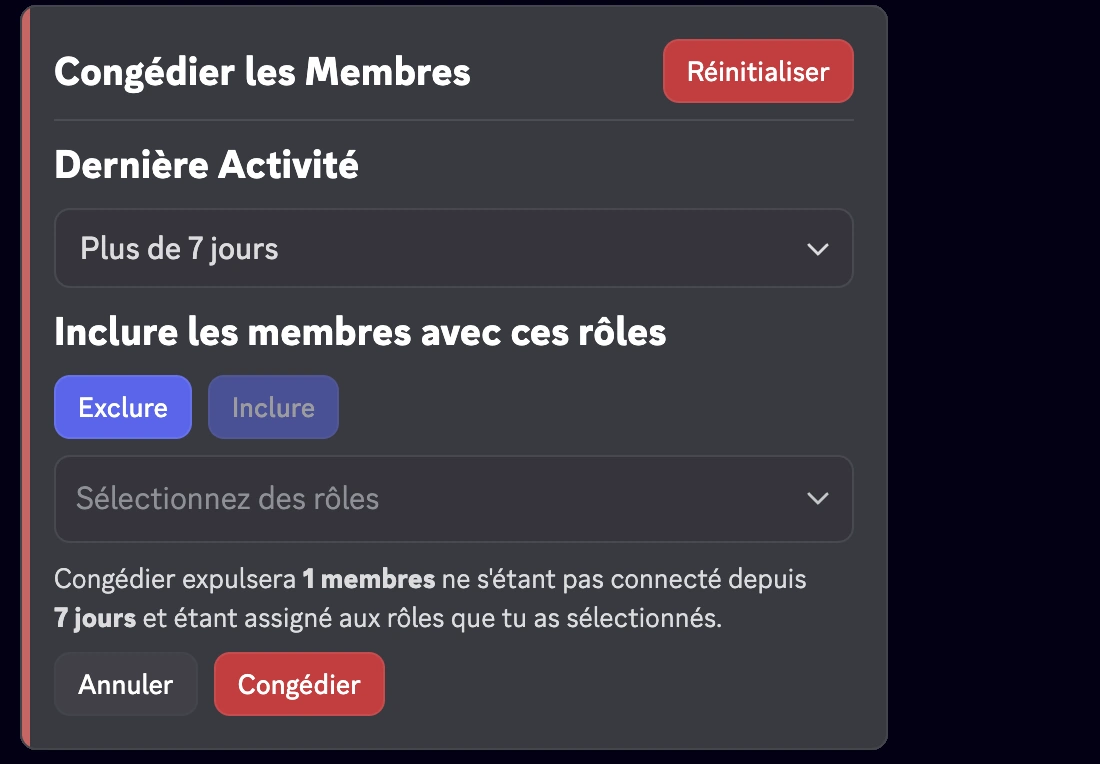
The /prune command allows you to kick inactive members from your server via an interactive menu.
Use the command: /prune [duration]
Replace [duration] with the desired number of days of inactivity. The bot displays an interactive menu allowing you to:
- Select the inactivity duration
- Include or exclude specific roles
- See the number of affected members before confirmation
🚫 Block Users
The /block command allows you to prevent a user from using certain RaidProtect features on your server (for example, sending reports or receiving the tag role).
Block a user
Use the command: /block add (user) [reason]
Unblock a user
Use the command: /block remove (user) [reason]
List blocked users
Use the command: /block list
📢 Information Panels
See the dedicated information panels page to learn more about the /display public command.
📜 My Sanctions
The /my-sanctions command allows members to view their own sanctions on the server, according to the privacy level configured by administrators.
Use the command: /my-sanctions
This command is also accessible via the View my sanctions button on the information panels if the feature is enabled.
🏠 Server information
The /serverinfo command displays the information of the current server: name, owner, creation date, member count, boost level, enabled features, etc.
Use the command: /serverinfo
💬 Share feedback
The /feedback command lets any server member share feedback, a suggestion or a bug report directly from Discord, without having to join the support server.
Use the command: /feedback
The bot prompts you to rate your experience and then opens a window to type your feedback. Depending on the type of feedback (suggestion, bug, experience), RaidProtect redirects you to the right resources (support server, suggestions page).
👤 User Information
The /userinfo command lets you get detailed information about a user.
Use the command: /userinfo [user]
Replace [user] with the desired mention or ID.
The userinfo command is usable by prefix.
📋 Displayed Information
- Discord account creation date
- User's profile picture
- Profile banner
- Profile badges
- The Nitro, Booster, Quest, and Originally Name badges are not displayed.
🎭 Information about a server member
If the target is a server member, additional info includes:
- Date joined the server
- Server nickname
- Number of roles and list of the first 6 roles
- Permission category (visible only to moderators):
- Animator
- Moderator
- Manager
- Administrator
- Owner
The Animator category is shown if the member has at least one of the following permissions:
MANAGE_EXPRESSIONSCREATE_GUILD_EXPRESSIONSMANAGE_EVENTS
The Moderator category is shown if the member has at least one of the following permissions:
KICK_MEMBERSBAN_MEMBERSMODERATE_MEMBERSMANAGE_MESSAGESMUTE_MEMBERSDEAFEN_MEMBERSMOVE_MEMBERSMANAGE_THREADS
The Manager category is shown if the member has at least one of the following permissions:
MANAGE_GUILDMANAGE_ROLESMANAGE_CHANNELSVIEW_AUDIT_LOGMANAGE_WEBHOOKSMANAGE_SERVER_EXPRESSIONS
The Administrator category is shown in two possible cases:
1️⃣ Has the permission:
ADMINISTRATOR
2️⃣ Has all three of the following permissions at the same time:
MANAGE_GUILDMANAGE_ROLESMANAGE_CHANNELS
Condition: The member is the server owner.
- Member flags (visible only to moderators):
| Flags | Emojis | Meanings |
|---|---|---|
DID_REJOIN |  | The user left and rejoined the server. |
IS_GUEST |  | Guest member (temporary invite or guest access). |
COMPLETED_ONBOARDING |  | Completed the server onboarding process. |
STARTED_ONBOARDING |  | Started the onboarding process. |
COMPLETED_SERVER_GUIDE |  | Completed the server guide if enabled. |
STARTED_SERVER_GUIDE |  | Started the server guide. |
AUTOMOD_QUARANTINED_NAME |  | Quarantined by automoderation for the username. |
AUTOMOD_QUARANTINED_GUILD_TAG | | Quarantined by automoderation for the tag or nickname. |
BYPASSES_VERIFICATION |  | User can bypass server verification. |
SPAMMER |  | Account marked as spammer or unusual activity detected. |
⚖️ Discord Sanctions
The /ds command allows you to view the sanctions issued by Discord against a user, in accordance with European regulations.
Use the command: /ds (user)
Replace (user) with the desired mention or ID.
📋 Displayed Information
- Type of sanction:
| Sanctions | Emojis | Meanings |
|---|---|---|
CONTENT_DELETED |  | Content posted by the user has been deleted. |
RESTRICTED |  | The user account has been restricted. |
ACCOUNT_SUSPENDED |  | The user account has been suspended. |
ACCOUNT_TERMINATED |  | The user account has been terminated. |
- Date of issue
- Type of content
- Sanction flags:
| Flags | Emojis | Meanings |
|---|---|---|
ILLEGAL_CONTENT |  | Sanction applied for illegal content. |
AUTOMATED_DETECTION |  | Sanction applied through automated detection. |
- Reports found
- No reports found
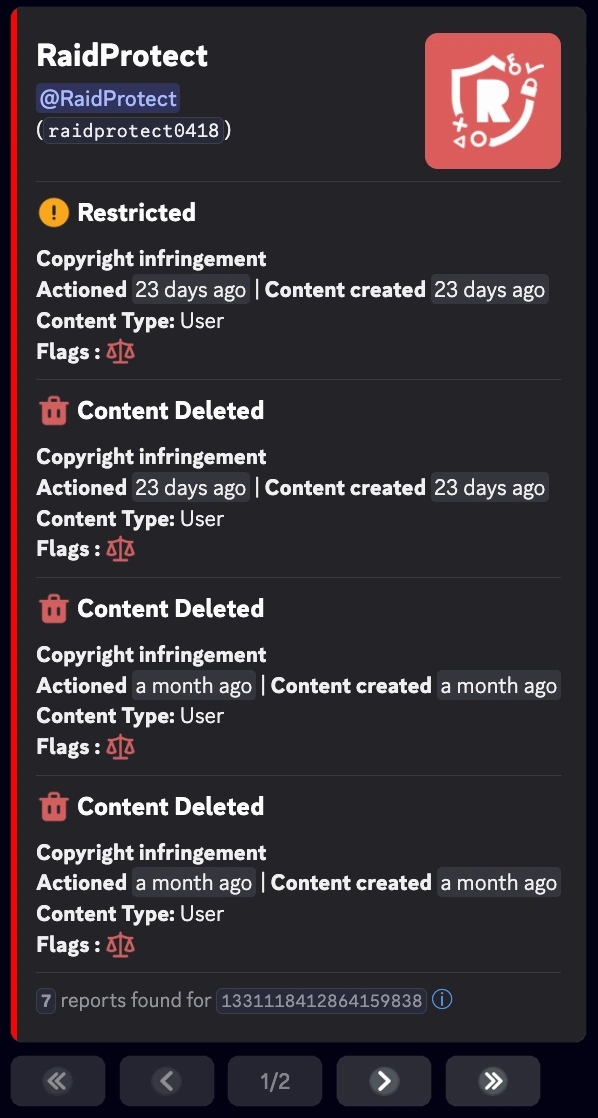
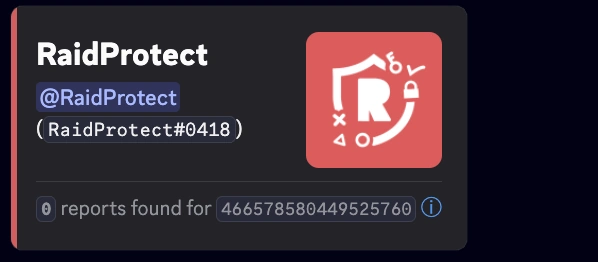
The command allows you to view the reports issued between August 22, 2024 and August 14, 2025. This information is provided directly by Discord and cannot be modified by RaidProtect.